O2 UK APN Settings for iPhone iPad Internet Pay Monthly
Posted: Fri Mar 29, 2013 3:43 pm
O2 UK Internet and MMS APN Settings for iPhone iPad:
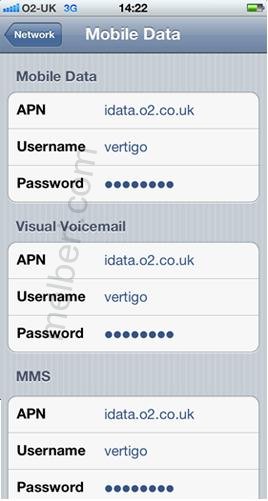
1. For Pay Monthly iPhone Plan
For Pay Monthly Plan APN Setting is configured as default. If you want to reconfigure it, use the below settigns.
In the main menu -> Settings-> General -> Network->Turn ON Cellular Data Network (or Mobile Data Network)->Select Cellular Data Network -> new APNand type the following data there
Cellular Data:
APN: idata.o2.co.uk
Username: vertigo
Password: password
Visual Voicemail:
APN: idata.o2.co.uk
Username: vertigo
Password: password
MMS:
APN: idata.o2.co.uk
Username: vertigo
Password: password
MMSC: http://mmsc.mms.o2.co.uk:8002" onclick="window.open(this.href);return false;
MMS Proxy: 193.113.200.195:8080
MMS Message Size : 2097152
MMS UA Prof URL: default
MMS Message Size: 300000
MMS UA Prof URL: default
2. Pay & Go iPhone Internet Settings:
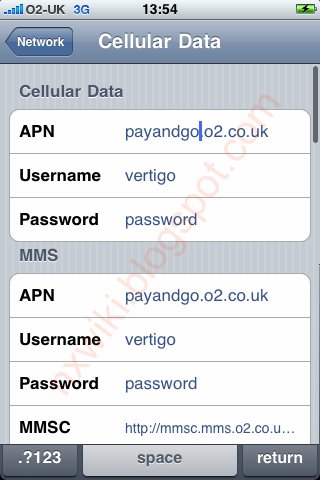
In the main menu -> Settings-> General -> Network->Turn ON Cellular Data Network (or Mobile Data Network)->Select Cellular Data Network -> new APNand type the following data there
Cellular Data:
APN: payandgo.o2.co.uk
Username: vertigo
Password: password
MMS:
APN: payandgo.o2.co.uk
Username: vertigo
Password: password
MMSC: http://mmsc.mms.o2.co.uk:8002" onclick="window.open(this.href);return false;
MMS Proxy: 193.113.200.195:8080
MMS Message Size: 2097152
MMS UA Prof URL: default
*Visual Voice mail isn't supported on Pay & Go, so there's no need to update the Visual Voicemail APN
3. Corporate Bespoke iPhone:
APN: mycompany.co.uk (for example). Your company's IT administrator will be able to provide full details.
1. For Pay Monthly iPhone Plan
For Pay Monthly Plan APN Setting is configured as default. If you want to reconfigure it, use the below settigns.
In the main menu -> Settings-> General -> Network->Turn ON Cellular Data Network (or Mobile Data Network)->Select Cellular Data Network -> new APNand type the following data there
Cellular Data:
APN: idata.o2.co.uk
Username: vertigo
Password: password
Visual Voicemail:
APN: idata.o2.co.uk
Username: vertigo
Password: password
MMS:
APN: idata.o2.co.uk
Username: vertigo
Password: password
MMSC: http://mmsc.mms.o2.co.uk:8002" onclick="window.open(this.href);return false;
MMS Proxy: 193.113.200.195:8080
MMS Message Size : 2097152
MMS UA Prof URL: default
MMS Message Size: 300000
MMS UA Prof URL: default
2. Pay & Go iPhone Internet Settings:
In the main menu -> Settings-> General -> Network->Turn ON Cellular Data Network (or Mobile Data Network)->Select Cellular Data Network -> new APNand type the following data there
Cellular Data:
APN: payandgo.o2.co.uk
Username: vertigo
Password: password
MMS:
APN: payandgo.o2.co.uk
Username: vertigo
Password: password
MMSC: http://mmsc.mms.o2.co.uk:8002" onclick="window.open(this.href);return false;
MMS Proxy: 193.113.200.195:8080
MMS Message Size: 2097152
MMS UA Prof URL: default
*Visual Voice mail isn't supported on Pay & Go, so there's no need to update the Visual Voicemail APN
3. Corporate Bespoke iPhone:
APN: mycompany.co.uk (for example). Your company's IT administrator will be able to provide full details.