O2 UK Internet and MMS APN Settings for iPhone iPad:
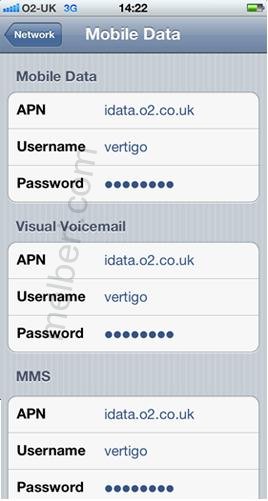
1. For Pay Monthly iPhone Plan
For Pay Monthly Plan APN Setting is configured as default. If you want to reconfigure it, use the below settigns.
In the
main menu -> Settings-> General -> Network->Turn ON Cellular Data Network (or Mobile Data Network)->Select Cellular Data Network -> new APNand type the following data there
Cellular Data:
APN: idata.o2.co.uk
Username: vertigo
Password: password
Visual Voicemail:
APN: idata.o2.co.uk
Username: vertigo
Password: password
MMS:
APN: idata.o2.co.uk
Username: vertigo
Password: password
MMSC:
http://mmsc.mms.o2.co.uk:8002" onclick="window.open(this.href);return false;
MMS Proxy: 193.113.200.195:8080
MMS Message Size : 2097152
MMS UA Prof URL: default
MMS Message Size: 300000
MMS UA Prof URL: default
 2. Pay & Go iPhone Internet Settings:
In the
main menu -> Settings-> General -> Network->Turn ON Cellular Data Network (or Mobile Data Network)->Select Cellular Data Network -> new APNand type the following data there
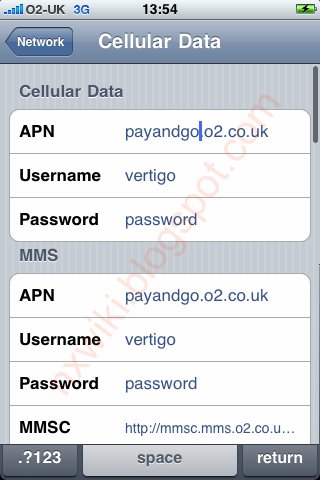
Cellular Data:
APN: payandgo.o2.co.uk
Username: vertigo
Password: password
MMS:
APN: payandgo.o2.co.uk
Username: vertigo
Password: password
MMSC:
http://mmsc.mms.o2.co.uk:8002" onclick="window.open(this.href);return false;
MMS Proxy: 193.113.200.195:8080
MMS Message Size: 2097152
MMS UA Prof URL: default
*Visual Voice mail isn't supported on Pay & Go, so there's no need to update the Visual Voicemail APN
 3. Corporate Bespoke iPhone:
APN: mycompany.co.uk (for example). Your company's IT administrator will be able to provide full details.
[size=150][u][b]O2 UK Internet and MMS APN Settings for iPhone iPad:[/b][/u][/size]
[b][u]1. For Pay Monthly iPhone Plan[/u][/b]
For Pay Monthly Plan APN Setting is configured as default. If you want to reconfigure it, use the below settigns.
In the [b][color=#0000BF]main menu -> Settings-> General -> Network->Turn ON Cellular Data Network (or Mobile Data Network)->Select Cellular Data Network -> new APN[/color][/b]and type the following data there
[u]Cellular Data:[/u]
APN: idata.o2.co.uk
Username: vertigo
Password: password
[u]Visual Voicemail:[/u]
APN: idata.o2.co.uk
Username: vertigo
Password: password
[u]MMS:[/u]
APN: idata.o2.co.uk
Username: vertigo
Password: password
MMSC: http://mmsc.mms.o2.co.uk:8002" onclick="window.open(this.href);return false;
MMS Proxy: 193.113.200.195:8080
MMS Message Size : 2097152
MMS UA Prof URL: default
MMS Message Size: 300000
MMS UA Prof URL: default
[img]http://1.bp.blogspot.com/-qFRCwXmJHeU/UVW1x_wbdRI/AAAAAAAAWms/713fGu-IZvw/s1600/iPhone_data_o2_pay+monthyl+UK.JPG[/img]
[u][b]2. Pay & Go iPhone Internet Settings:[/b][/u]
In the [b][color=#0000BF]main menu -> Settings-> General -> Network->Turn ON Cellular Data Network (or Mobile Data Network)->Select Cellular Data Network -> new APN[/color][/b]and type the following data there
[u]Cellular Data:[/u]
APN: payandgo.o2.co.uk
Username: vertigo
Password: password
[u]MMS:[/u]
APN: payandgo.o2.co.uk
Username: vertigo
Password: password
MMSC: http://mmsc.mms.o2.co.uk:8002" onclick="window.open(this.href);return false;
MMS Proxy: 193.113.200.195:8080
MMS Message Size: 2097152
MMS UA Prof URL: default
*Visual Voice mail isn't supported on Pay & Go, so there's no need to update the Visual Voicemail APN
[img]http://2.bp.blogspot.com/-4I80YG9jnPw/UXYrE3MPJcI/AAAAAAAAAeM/3CATGV9dg2c/s1600/O2+UK+APN+Settings+for+iPhone+ipad+pay+to+go.jpg[/img]
[u][b]3. Corporate Bespoke iPhone:[/b][/u]
APN: mycompany.co.uk (for example). Your company's IT administrator will be able to provide full details.